
Extending The Kadence Custom Header
The KadenceWP theme has a feature where you can have different headers for different parts of the site. It has quite a powerful system for choosing where on the site a custom header would appear, but sometimes it’s not enough.
For example. I’m using Ivory Search in a site, and it allows you to make search engines for specific areas of the site. The issue is that it uses the default search results page for every search engine, and I need a custom header for each search results.
So I wrote to the most excellent Kadence support and they sent me a code snippet which helped. I adjusted it, so let’s walk through it.
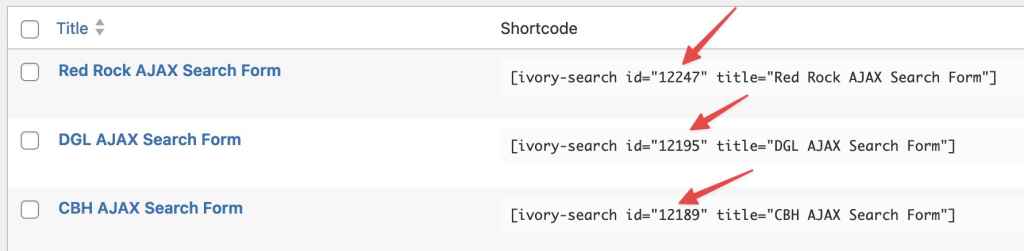
Something important to note is that the search results page with Ivory includes the ID of the search engine, so we know which one we’re dealing with on the results page. Additionally, Kadence knows the name of any custom header on the site. So if we know both those things we should be able to set the one we want. Fortunately Kadence is clever enough to have a hook for that.
So here’s the code, and then we’ll walk through it.
add_filter('kadence_conditional_header_display', 'change_search_header', 99, 2);

function change_search_header( $show, $header ) {

    if ( empty( $_GET['id'] ) || ! is_numeric( $_GET['id'] ) || ! is_search() ) {
        return $show;
    } else {
        $get = $_GET['id'];
    }

    $search = array(
        '11241' => 'Devotional',
        '12189' => 'CBH',
        '12195' => 'DGL',
        '12247' => 'Red Rock',
    );

    if ( $search[ $get ] === $header['label'] ) {
        $show = true;
    }
return $show;
}
So let’s walk through the code.
We make a function, and it takes the output and the the name of the header. Then the first thing we do is validate the get variable of the search form. We check to see if it’s empty, then see if it’s a number, and then (this is important) make sure we’re on the Search results page.
If it fails these tests, we return the default value that was passed in as $show.
Then I have an array where the ID numbers of the search forms are keys, and the names of headers are the values.
Here’s where we get the Ivory search IDs.
And here’s where we get the names of the headers:
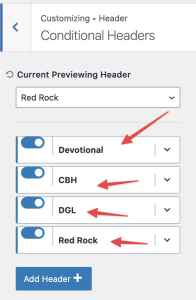
Then, if the name of the header matches the name tied to the search ID in our array, we set $show to true, and that prints the proper header.
Then we use add_filter function to run this function on every page.